Patch uses Outlook to send an email to yourself, which triggers a Shortcuts automation to intercept the notification and send the text message.
The whole process takes around ten seconds and requires no interaction after you hit send on the Pebble.
 Join the Patch
Discord
Join the Patch
DiscordImportant
Patch stores Outlook OAuth tokens and contact phone numbers in your Pebble App's browser storage.
If someone can access your device logs, browser/session storage, or your Outlook account, they may be able to view message metadata or send mail. For best safety, create a new Outlook account for Patch.
Setup
Prerequisites
- A Microsoft Outlook account added to the native iOS Mail App (guide). The email must end with "@outlook.com". Be sure the account is set to push notifications, not fetch.
- Shortcuts installed on the iOS device you want to send messages from.
Automation
- Install the Patch iOS Shortcut.
- In the Shortcuts app, click the Automations tab.
- Create a new automation and select Email.
-
Configure the following, using your outlook email instead of
"example@outlook.com":
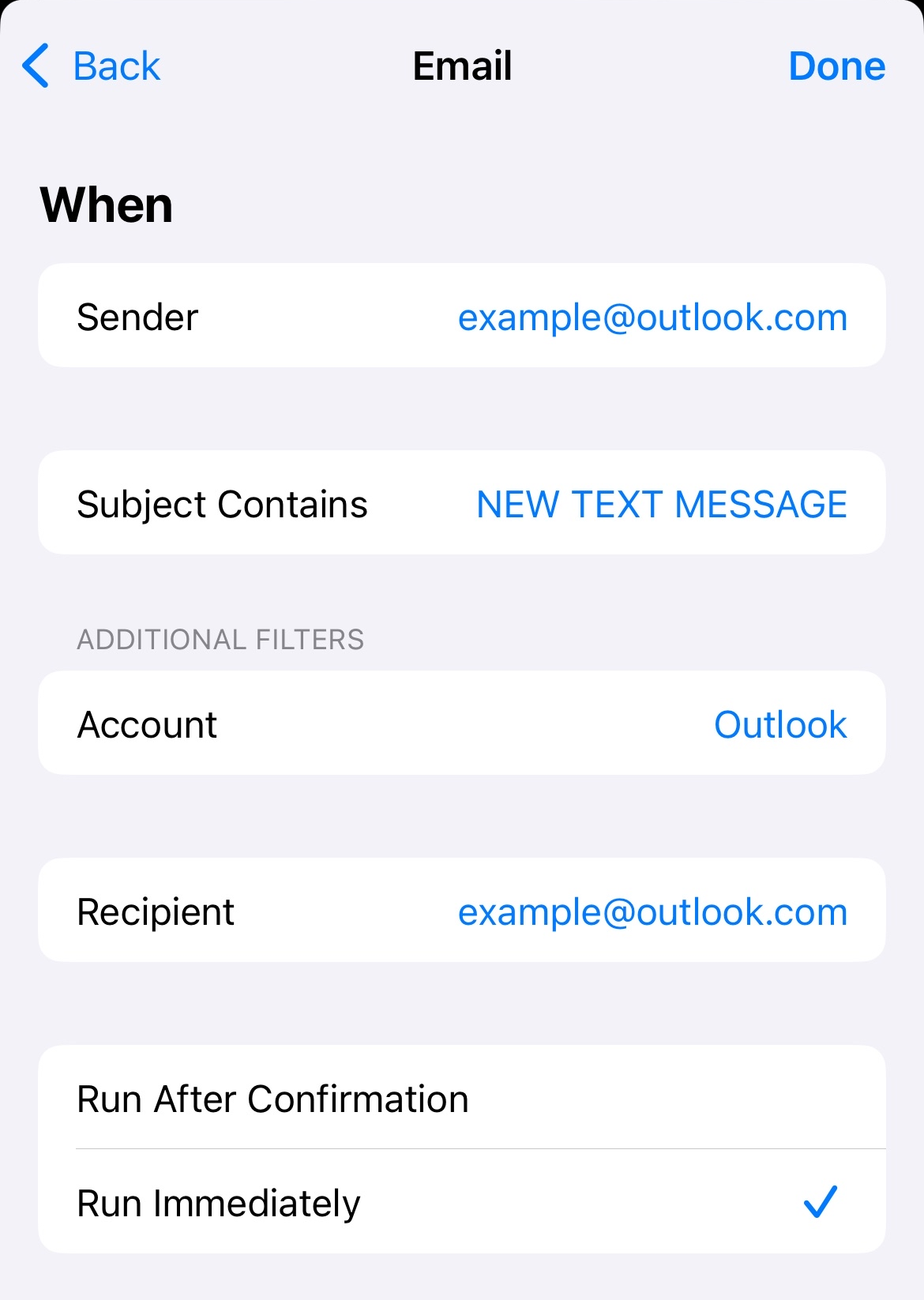
- Click Next. Then, select the Patch Shortcut from your Shortcut library.
- Sign in to outlook and enter your email in the Configuration section (below), set your preferences, and test!
- See Troubleshooting at the bottom of this page if you experience problems.
Configuration
Outlook Authentication
Choose one sign-in option:
Email Address
Messages are sent to this mailbox, where your iOS Shortcut can
process them.
Behavior
Contacts
No contacts yet. Add one to get started.
Canned Messages
Hold the middle button on a contact to select and send a canned
message.
No canned messages yet.
Troubleshooting
- Automations will not run if your phone is on Low Power Mode. There is no workaround.
- After you log in to your Outlook account on this page, be sure to hit the Save button.
- Emails may be routed to your Junk folder. If this happens, log in to Outlook through a browser and mark them as not spam.
- Ensure the Outlook account you're using is configured to receive push notifications by going to: Settings -> Apps -> Mail -> Mail Accounts -> Fetch New Data -> (whatever your outlook mail account is named) -> Push.
- If emails are being sent, but the automation isn't triggering, be sure that the Mail app and the Outlook account have notifications enabled.
- In the Patch Shortcut, ensure that "Show When Run" is turned OFF on the Message block. You will need to click the arrow on the block to see this setting.
- Some users report signing into your Microsoft account first in these settings, then setting up the Shortcuts automations can fix issues.
- If you just can't get the automation to trigger, restart your iOS device.